
4. Bitwarden Apps
Now, that you have installed Vaultwarden on your server, created an account and tweaked it to your needs it is time to install the Bitwarden apps on your devices. In this section we will provide the links to the different apps and provide some tips and tricks that are handy to use
Firefox Bitwarden Extension F-Droid Bitwarden App Flathub Bitwarden App

New Entries
Now, if you create a new entry inside Bitwarden it is recommended to do this in the following way for accounts
- Create a new Bitwarden Entry
- Select the right folder
- Give it a proper name i.e remove the website or app link as a Name for the entry
- In the case of accounts that work in the web browser as on your phone/tablet etcetera make sure you add all the different links to your entry. For android apps this is always androidapp:// followed by the app link. In this way your credentials will always show up instead of that you need to search for them in Bitwarden.
Default URL Detection
By default Bitwarden only looks at the base domain for recognizing which passwords it suggests to fill in. Now, this function works great if you don't have any self hosted apps because almost each base domain will be different. However, if you have lots of self hosted apps your base domain might be the same for all of your applications. In that case it is better to change the Default URL to the host part of the domain.
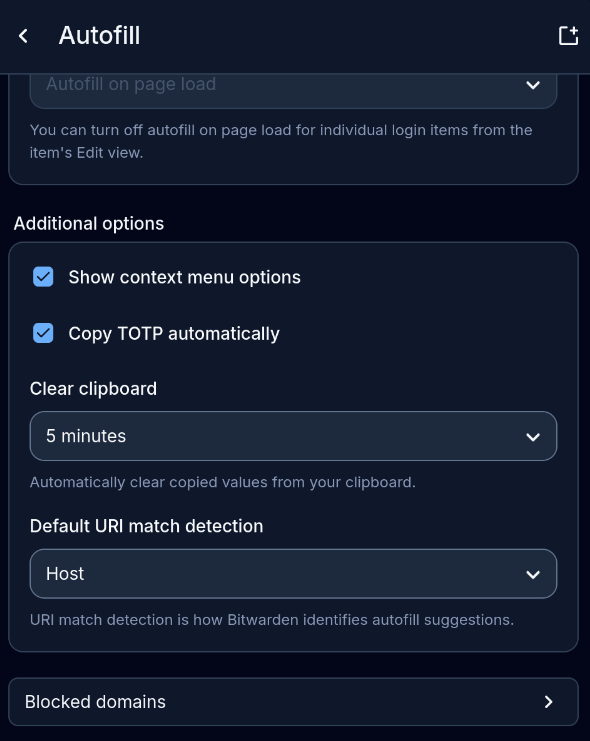 Open Bitwarden -> Settings -> Autofill -> Scroll down -> Select Default URI match detection -> Then change it to host
No comments to display
No comments to display